
Good evening everyone, in this post I am going to show you how to easily hot-add disk space on your Linux Proxmox VE virtual machine.
1) Log in to your Proxmox server’s interface, click the relevant VM, then go to the “hardware” section.
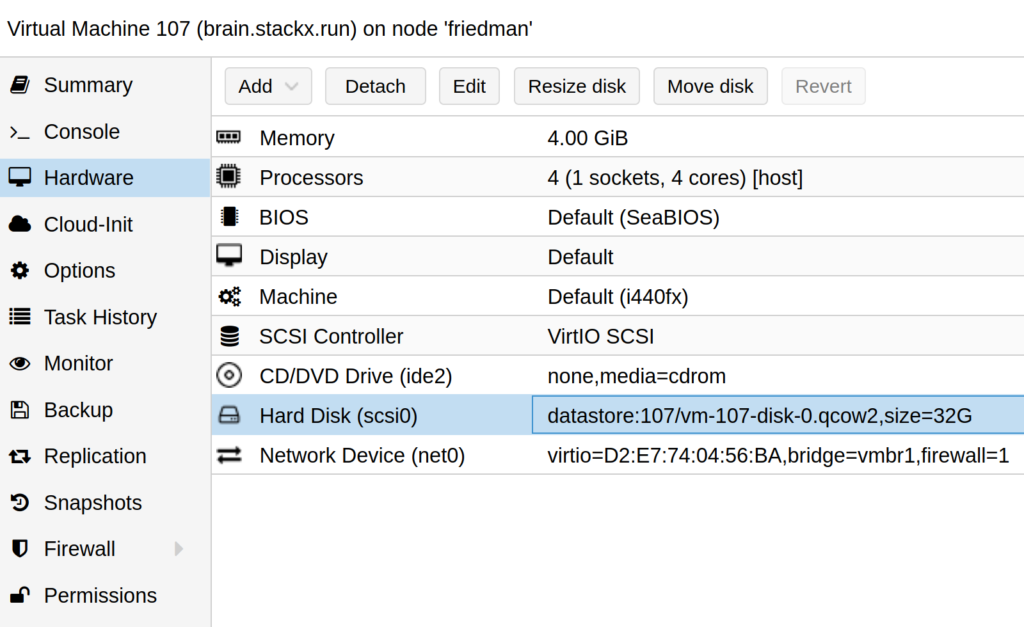
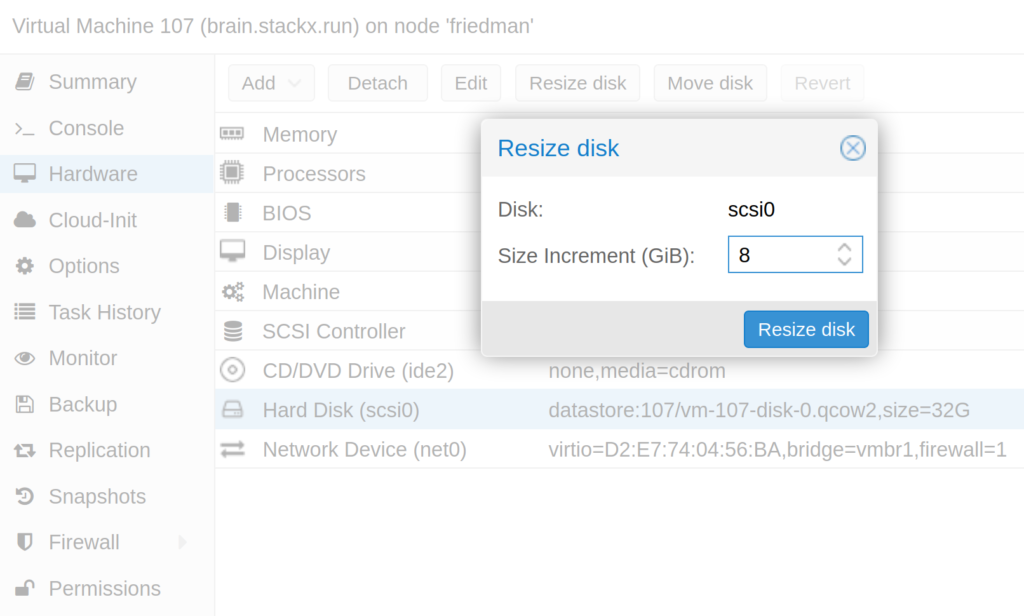
2) Select the disk, choose “resize disk” and add the extra space you need.
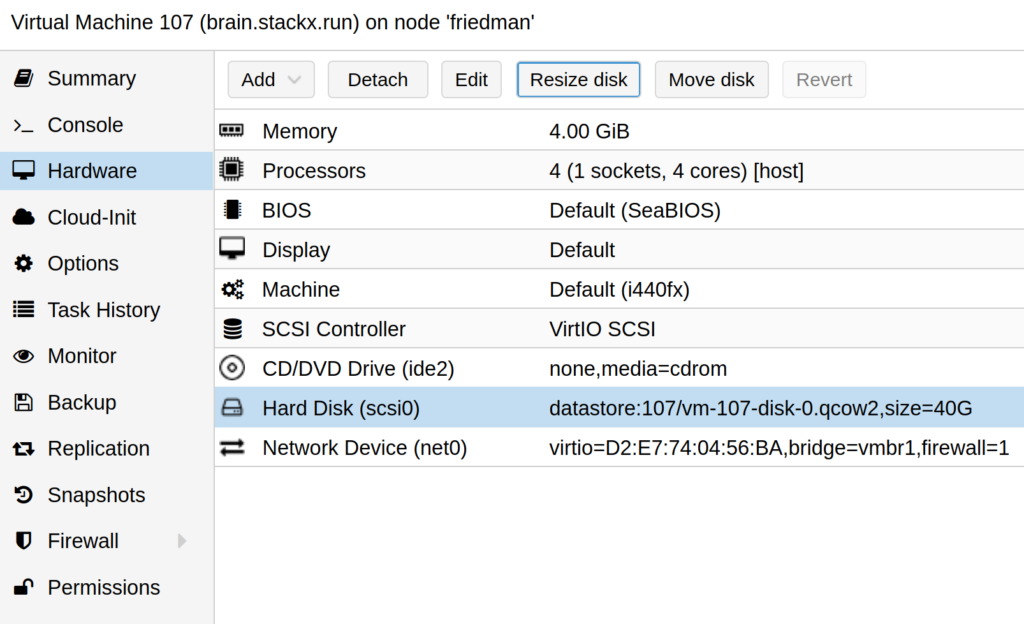
3) Once that is done, you should see the new space (here 40 GB instead of 32G)
You can also do this without logging in to the Proxmox interface: connect to the Proxmox server over SSH and run :
qm resize numerodevm scsi0 +8G
That is all for the Proxmox side. Now we move on to the Linux VM, which in this example runs Debian Stretch.
1) Install parted
apt install parted
2) Disable swap (unnecessary for a secondary disk)
swapoff -a
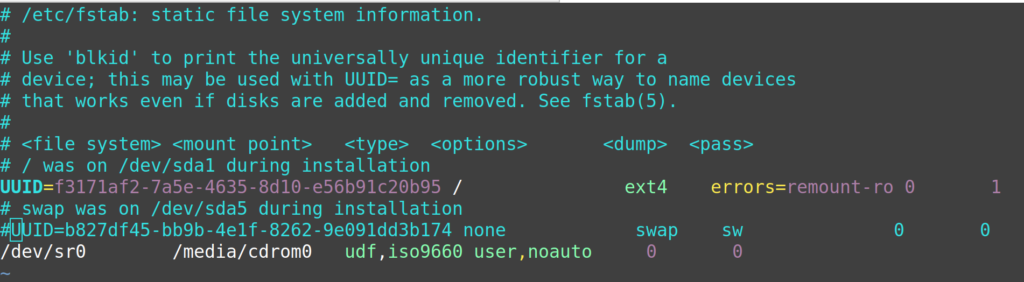
3) Comment out the swap line in the fstab
vim /etc/fstab
4) Identify the disk name with df -h
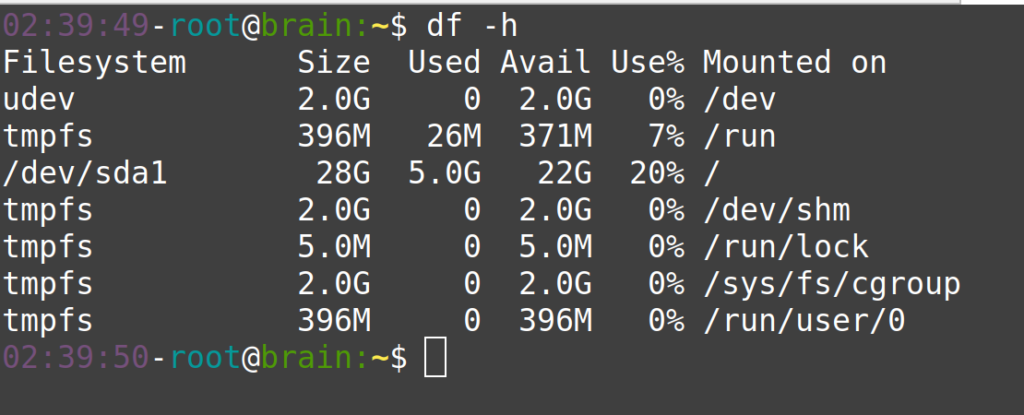
5) Run parted on the disk, then enter these commands
parted /dev/sda

print

rm 5

rm 2

resizepart 1

yes

100%

print

quit
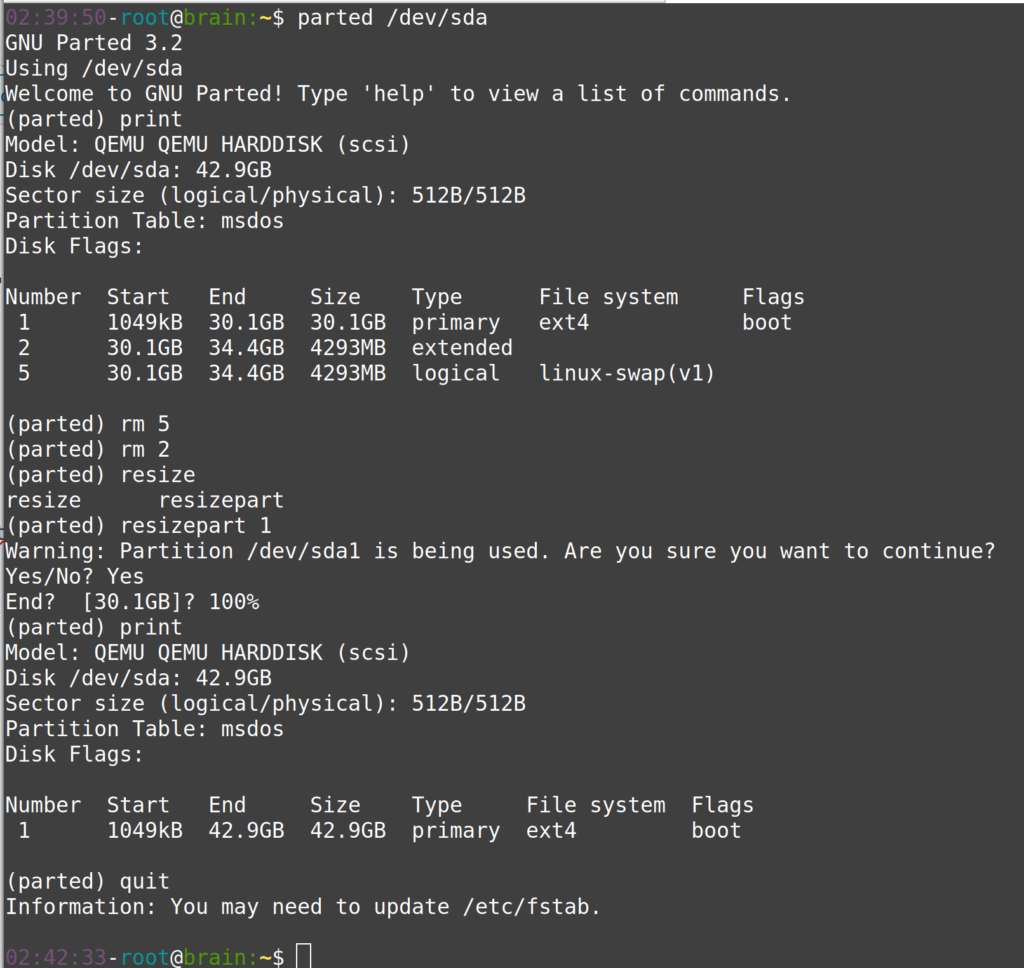
6) Finish with the Linux filesystem
resize2fs /dev/sda1
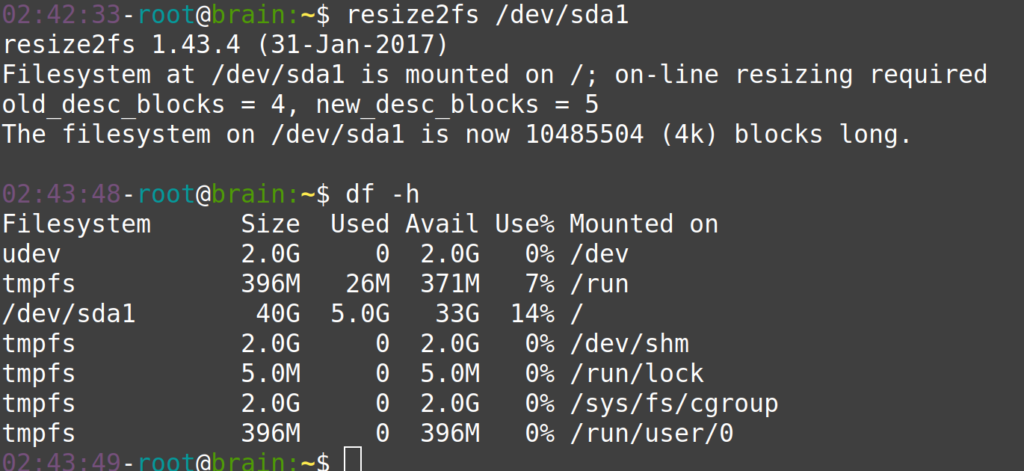
And there you go: the operation is complete and you can use your new disk space, with no downtime.
Video walkthrough:
Christophe Casalegno
You can follow me on: Twitter | Facebook | Linkedin | Telegram | Youtube

2 comments