

Introduction
Hello friends, this post follows up on the "live admin" video I published a few days ago, where I showed you this addition. If you want to watch it, here it is:
The context
The Fermi cluster currently consists of 4 identical nodes spread across 4 different geographical zones at OVHcloud (Roubaix, Limburg, ERI, and Gravelines) and runs (at the time of writing) on Proxmox VE 7.4-17.
3 nodes are used for production, and one node is kept as a spare (standby node), for testing and upgrades.
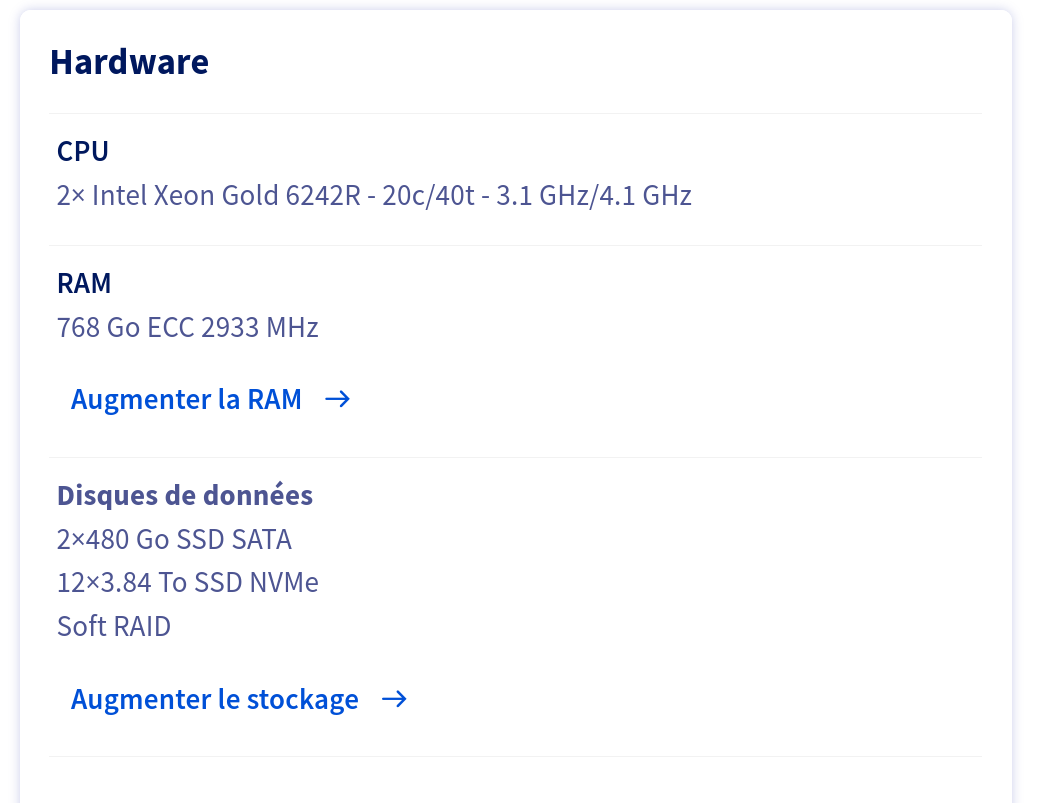
Their hardware configuration before the upgrade is as follows:
CPU: 2É— Intel Xeon Gold 6242R – 20c/40t – 3.1 GHz/4.1 GHz
RAM: 768 GB ECC 2933 MHz
Operating system storage: 2É—480 GB SSD SATA (configured in RAID 1)
VM storage: 6 x 3.84 TB NVMe SSDs (configured in RAID 10)
Network: 4 ports configured in redundant pairs with the ports in each pair connected to different network devices: one pair is dedicated to the vRack and the other to the public network.
Note: this redundancy is provided via 2 LACP aggregations. The vRack virtual port is then configured in a bridge used to assign public IPs to the VMs (my IP ranges are routed through the vRack).
Communication between the nodes uses 2 corosync rings: one via the vRack in a private network, and the other via the public network (which has been possible since corosync moved from Multicast to Unicast).
RAID 10 is a combination of RAID 1 (mirroring for redundancy) and RAID 0 (striping for performance). Usable space is reduced by 50% in this mode.
Requesting the upgrade from OVHcloud
You request it directly through the OVH interface (Manager), under the relevant server:
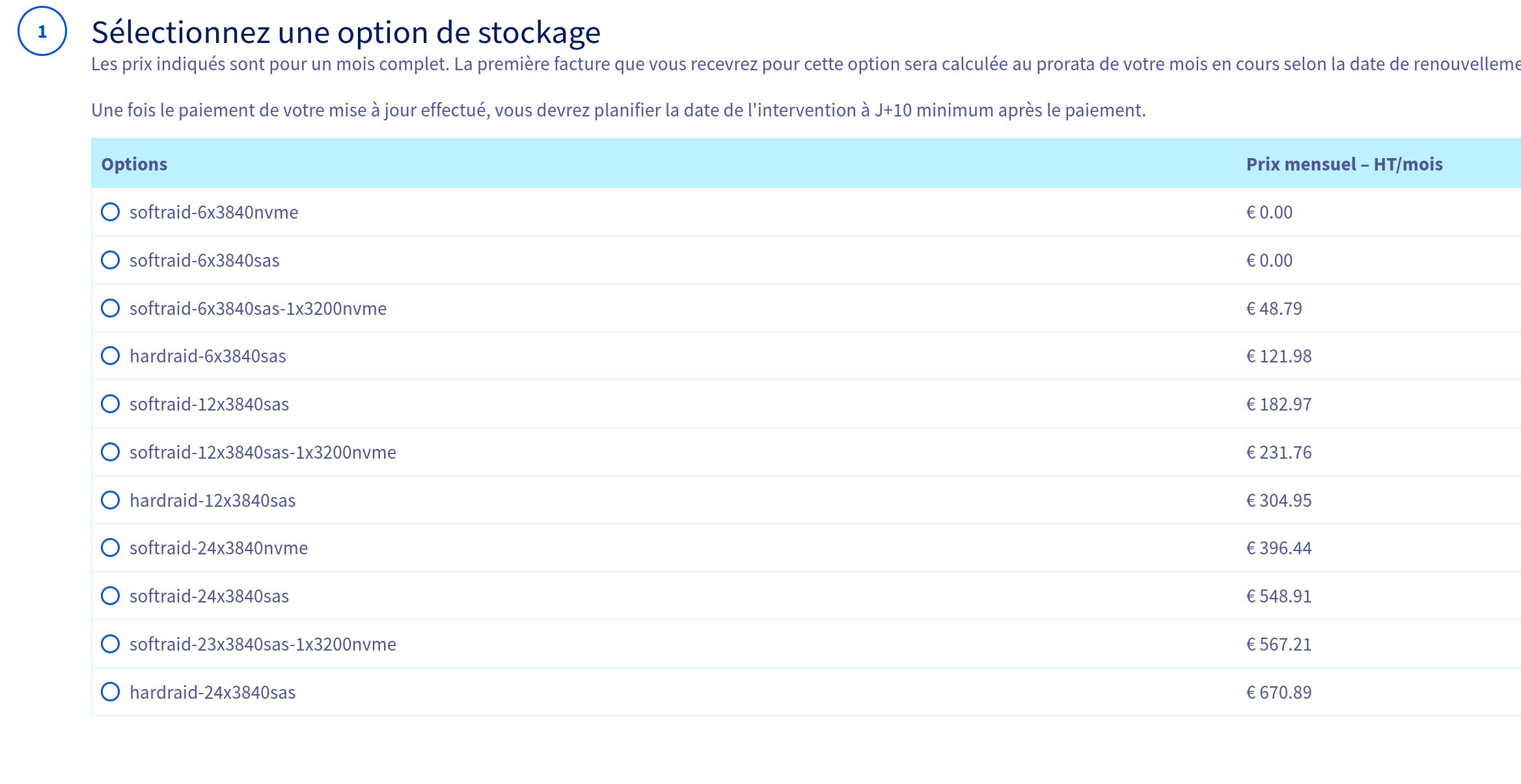
Once you have paid, you can schedule the work from this same interface. To make sure the operation goes smoothly, I open a support ticket with OVH, including the order reference, along these lines:
Sujet : Ajout de 6 nvme en conservant les nvme / la configuration actuelle commande N°xxxxxxxx
Message:  Bonjour, suite à ma commande N°xxxxxxxx, l'opération consistera à ajouter les 6 SSD NVMe sans toucher aux SSD NVMes actuels. Merci.
I make this clear because it is not possible to order an "addition of 6 x NVMe" by default: you select another configuration (see the screenshot above) such as "12 x NVMe", which could mean replacing all the SSDs…
In practice, that would not be a disaster, since each node is emptied before requesting the work. That said, I would rather spare myself the extra configuration work.
Once the date and time are confirmed, the work should go ahead without a hitch. You will then receive automated notifications when it starts and finishes, followed by a message directly from support (at least if you have Business support or above).
Bonjour Monsieur Casalegno,
L'intervention en datacenter est terminée pour le serveur xxxxxxxx.
Comme demandé, nous avons ajouté 6x 3.84To 32gbit/s 512n disques nvme supplémentaires.
Le serveur a redémarré avec les outils internes :
Journaux SEL OK.
Tous les modules de mémoire DIMM détectés
Tous les lecteurs détectés.
Connectivité réseau OK.
Firewall OK.
Vérification du matériel OK.
Résumé de la demande : Ajout de 6 nvme
Action entreprise : Ajout de 6 nvme
Date création de la demande : 13/11/2023
Résolution de la demande : 18/11/2023
Je me permets de résoudre ce ticket et reste à votre disposition.
Bon week-end,
Once these operations are done, it is time to move on to configuring a new RAID.
Checking and configuring the new RAID
Once connected to the server, and after a general check (rejoining the cluster, integrity of the existing RAID arrays, etc.), we check the newly added drives.
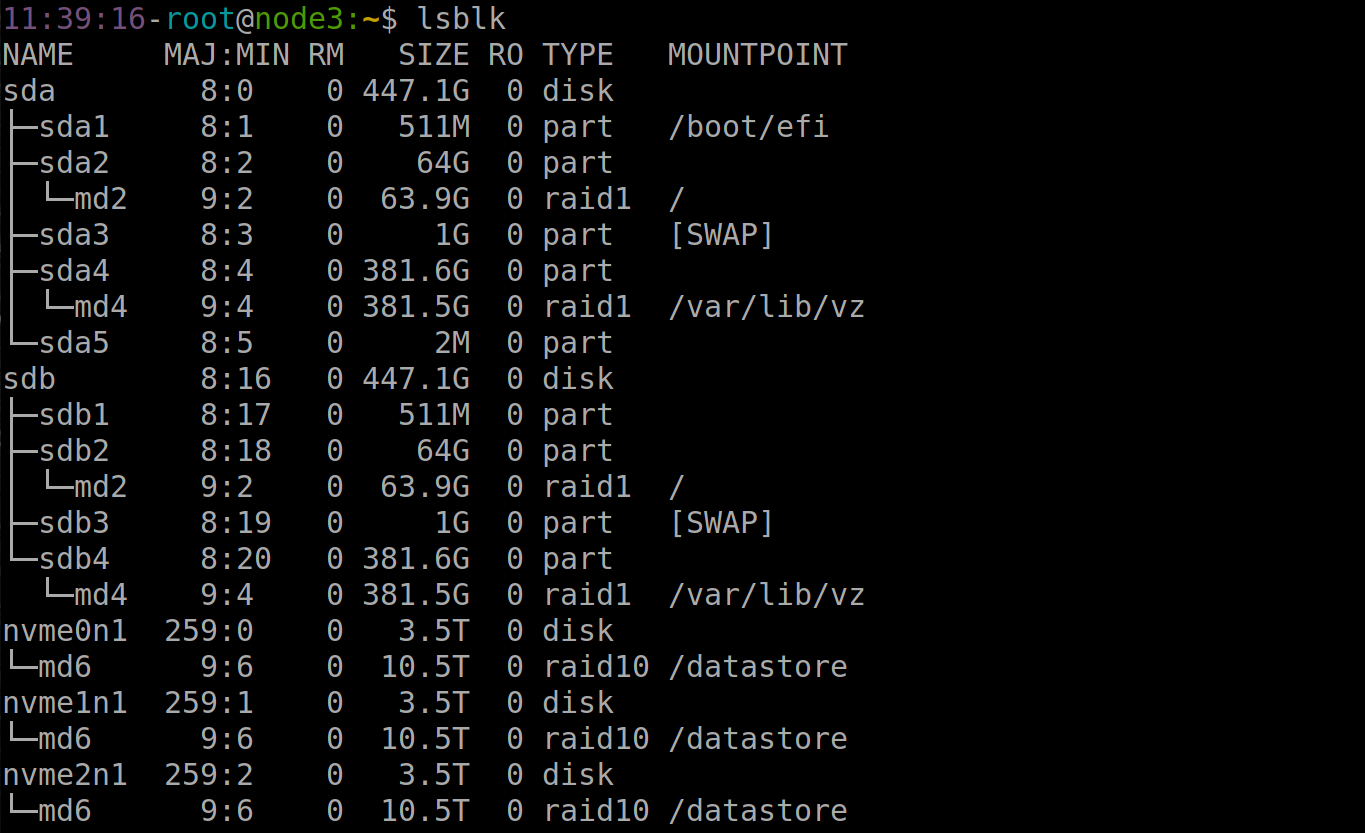
The lsblk command lists information about all the block devices available on the machine, such as hard drives, SSDs, etc.
It displays details such as the device name, the device type (such as disk or partition), the size, and the corresponding mount point.
It is a handy tool for getting a quick overview of the structure of the storage devices on a GNU / Linux system.
As you can see in the video, this clearly identifies the unassigned disks while letting us check that they have the correct specifications (NVMe type and capacity in particular).
Example: (I cropped it so the screenshot would not span several pages)
Next, we create the RAID array using the "mdadm" command. On a GNU / Linux system, mdadm is something of a Swiss Army knife for software RAID: it lets you create, manage and monitor RAID arrays.
mdadm --create /dev/md7 --level=10 --raid-devices=6 /dev/nvme6n1 /dev/nvme7n1 /dev/nvme8n1 /dev/nvme9n1 /dev/nvme10n1 /dev/nvme11n1Explanations:
–create /dev/md7: this tells mdadm to create a new RAID array and to name it /dev/md7.
–level=10: this sets the RAID level to create, which is RAID 10 in this case, as indicated above.
–raid-devices=6: this tells mdadm that there will be six devices (here, 6 NVMe SSDs) in the RAID array we are asking it to create.
/dev/nvme6n1 /dev/nvme7n1 /dev/nvme8n1 /dev/nvme9n1 /dev/nvme10n1 /dev/nvme11n1: These are the names of the storage devices that were added by OVHcloud and that we want to include in our new RAID.
Running this command starts building the RAID array. Although it is usable immediately, it will only be fully effective once the build is complete.
You can use the command:
cat /proc/mdstatIn the video, I uncap the speed for a faster build. You can check the current limit with the command:
cat /proc/sys/dev/raid/speed_limit_maxI uncap it via the following command:
echo 8000000 > /proc/sys/dev/raid/speed_limit_maxThis will let us reach a more than respectable build speed ;)
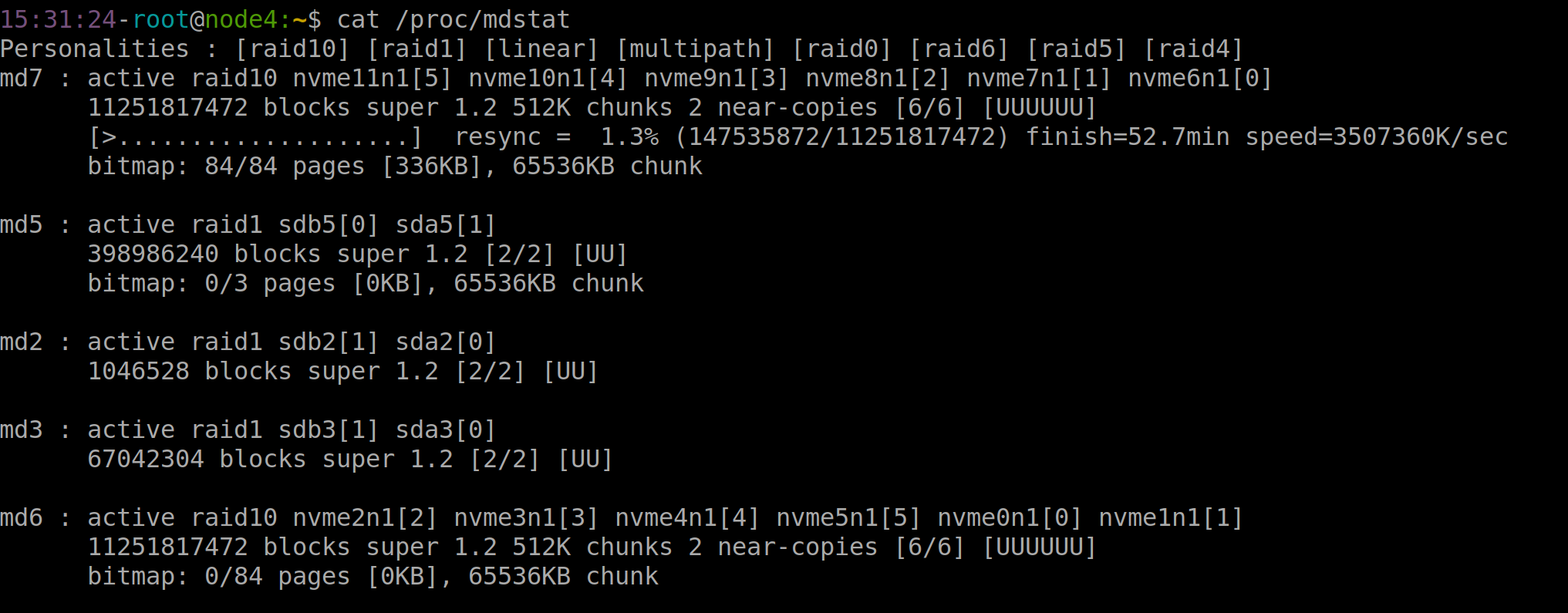
With peaks recorded at nearly 6 GB/s.
Once the operation is finished, you should have a "stable" result like this:
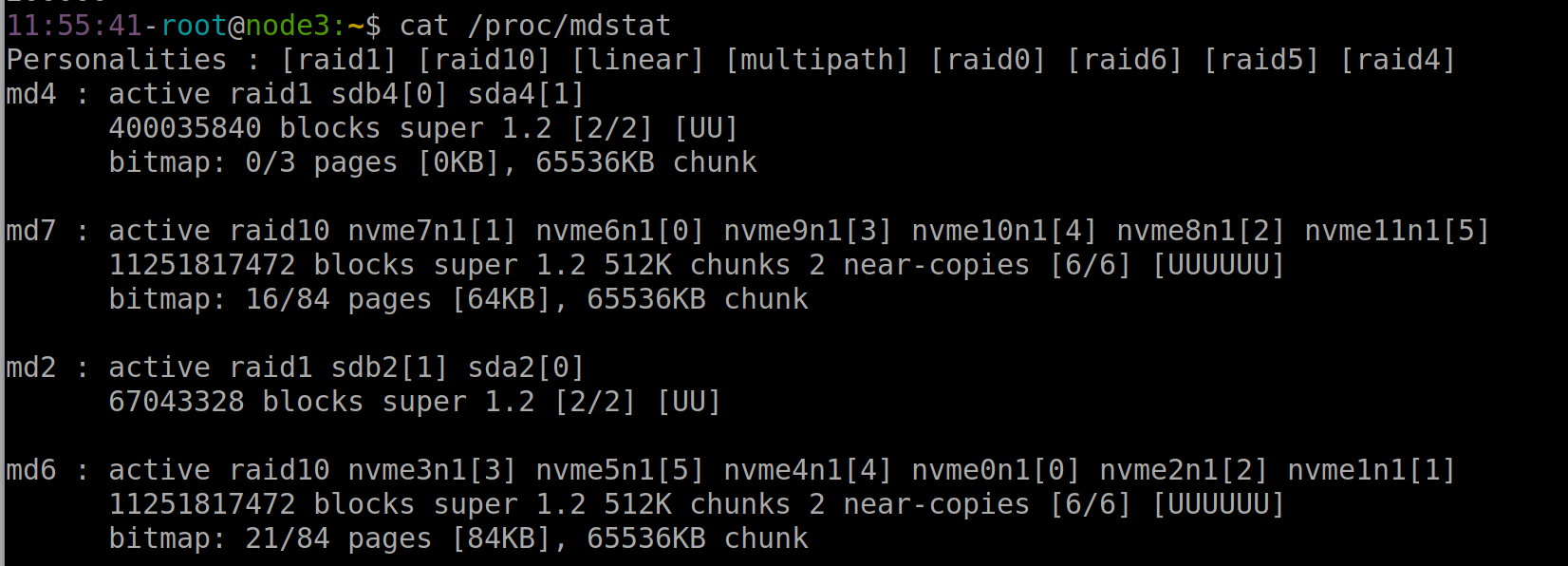
We then format the partition, using ext4 here, which is the file system I use on these nodes:
mkfs.ext4 /dev/md7Once the formatting is finished, I launch the command:
update-initramfs -u -k allExplanations:
update-initramfs manages the initramfs: a temporary file system loaded into memory at system startup. It contains the modules and tools necessary to mount the root file system and start the operating system.
-u: This option means "update" (mise à jour). It indicates that the existing initramfs for the specified kernel or kernels must be updated.
-k all: This option specifies the kernel versions for which the initramfs must be updated. The use of "all" means that the initramfs will be refreshed for all the kernel versions installed on the system (in my case, I keep the old installed kernels and I want to make sure they all have an up-to-date initramfs).
Once this operation is done, I reboot the system with the command
rebootOnce the operating system has restarted, I retrieve the UUID of the newly created RAID array with the command:
mdadm --detail /dev/md7 |grep UUIDI then add the corresponding entry in my configuration file (here /etc/mdadm.conf).
12:11:43-root@node3:~$ cat /etc/mdadm.conf
ARRAY /dev/md/md2  metadata=1.2 UUID=27c87a5c:bde1fc9f:ba924f41:03efebee name=md2
ARRAY /dev/md/md4  metadata=1.2 UUID=97989221:936a0203:e9397bdf:4f94eeec name=md4
ARRAY /dev/md/6	   metadata=1.2 UUID=03f164d2:75dd0904:106bc607:49d34bd6 name=md6
ARRAY /dev/md/7	   metadata=1.2 UUID=e7a46330:3eda33a5:b9875d8d:e00f072a name=md7
Note: Naming can vary. Under the same circumstances, you might therefore need to specify an ARRAY such as: /dev/md7, /dev/md/7, or else /dev/md/node4:7
The RAID array names you need to specify can vary depending on their configuration, conventions specific to the distribution or system version, updates to the system or mdadm, and the use of custom names or management scripts.
Once these operations are done, we need to create the mount point (it already existed in the video), but if it does not exist, a simple
mkdir /datastore2All that remains is to update our fstab file: this configuration file tells the operating system how to automatically mount a specific file system at startup.
You can proceed in several ways. You can specify the path of the corresponding RAID device ("legacy" version) or else its UUID:
For the legacy version:
/dev/md7 /datastore2 ext4 defaults,relatime 0 0For the UUID version, you first need to retrieve it using the blkid command:

I strongly recommend using it with grep to make the output easier to read. Here is what it can look like otherwise:
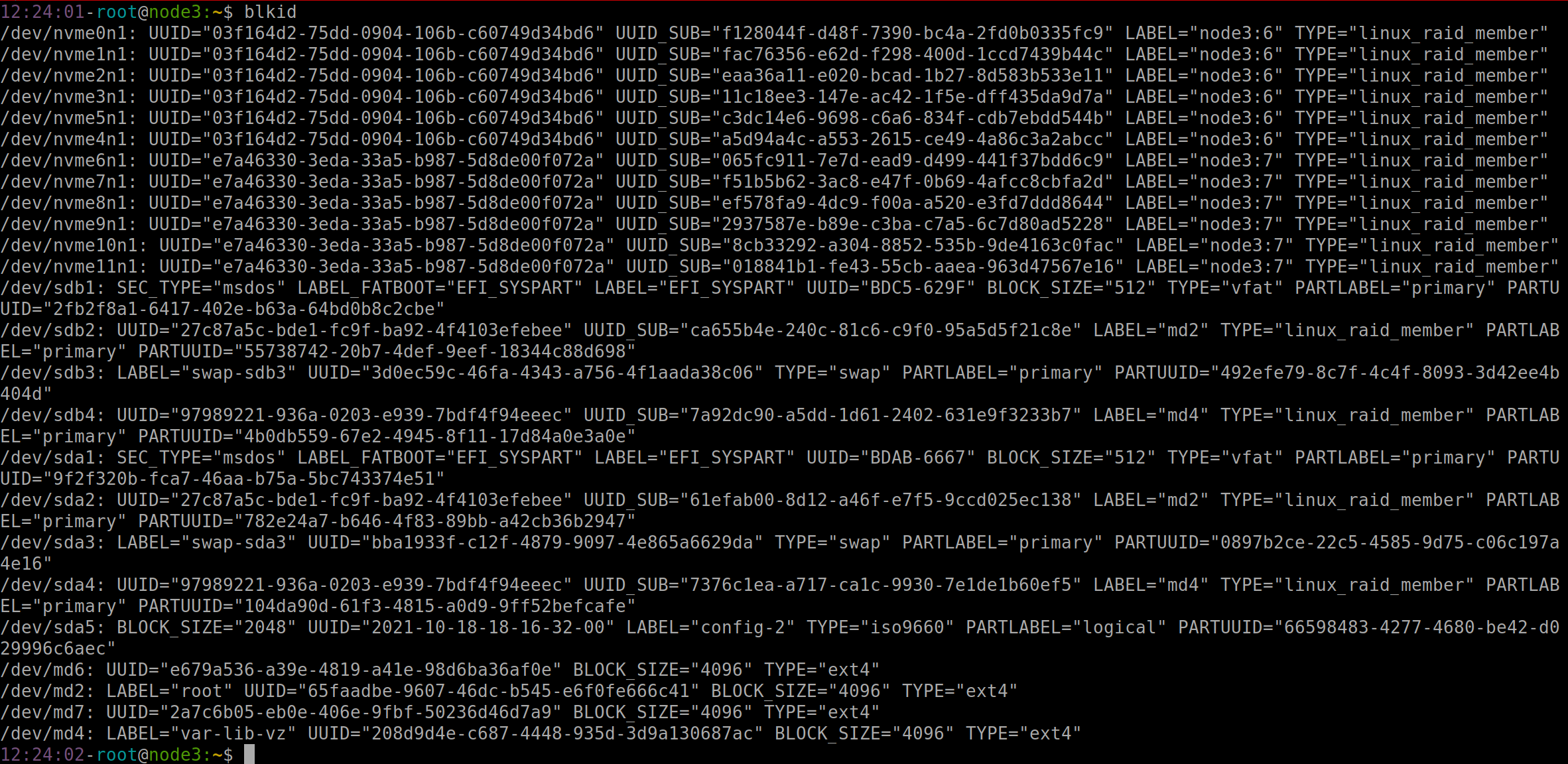
That is a bit harder to read.
Once the UUID is retrieved, all you have left to do is add the corresponding line to your fstab file:
UUID=2a7c6b05-eb0e-406e-9fbf-50236d46d7a9 /datastore2 ext4 defaults,relatime 0 0Explanations:
UUID=2a7c6b05-eb0e-406e-9fbf-50236d46d7a9: UUID means "Universally Unique Identifier". It is a unique identifier for the file system on the hard drive or the partition.
2a7c6b05-eb0e-406e-9fbf-50236d46d7a9 is the specific UUID of the partition concerned, which we have just retrieved via the blkid command. It is a unique identifier regarded as a reliable way to identify it.
/datastore2: this is the mount point we have just created, that is, the directory in the file system tree where the partition or the RAID will be accessible once mounted.
ext4: This is the type of the file system of the partition. It can vary depending on your choices.
defaults,relatime: These are the mount options for the file system.
– defaults represents a set of default options (such as mounting read-write, the execution of programs, etc.).
– relatime is an option that updates the access timestamps of files only under certain conditions, which can improve performance.
0: This first digit (0 in this case) indicates whether or not it is necessary to do a dump of the file system. A value of 0 means that the dump is not necessary for this partition.
0: This second digit determines the order in which the file system is checked at startup. A value of 0 means that the file system will not be checked at startup. Adapt this value to your use cases, how quickly you need to restart, whether repairs will be manual or automatic, etc.
All that remains now is to test mounting with the command:
mount /datastore2umount /datastore2The last step is to add the storage in the Proxmox interface so you can use it:
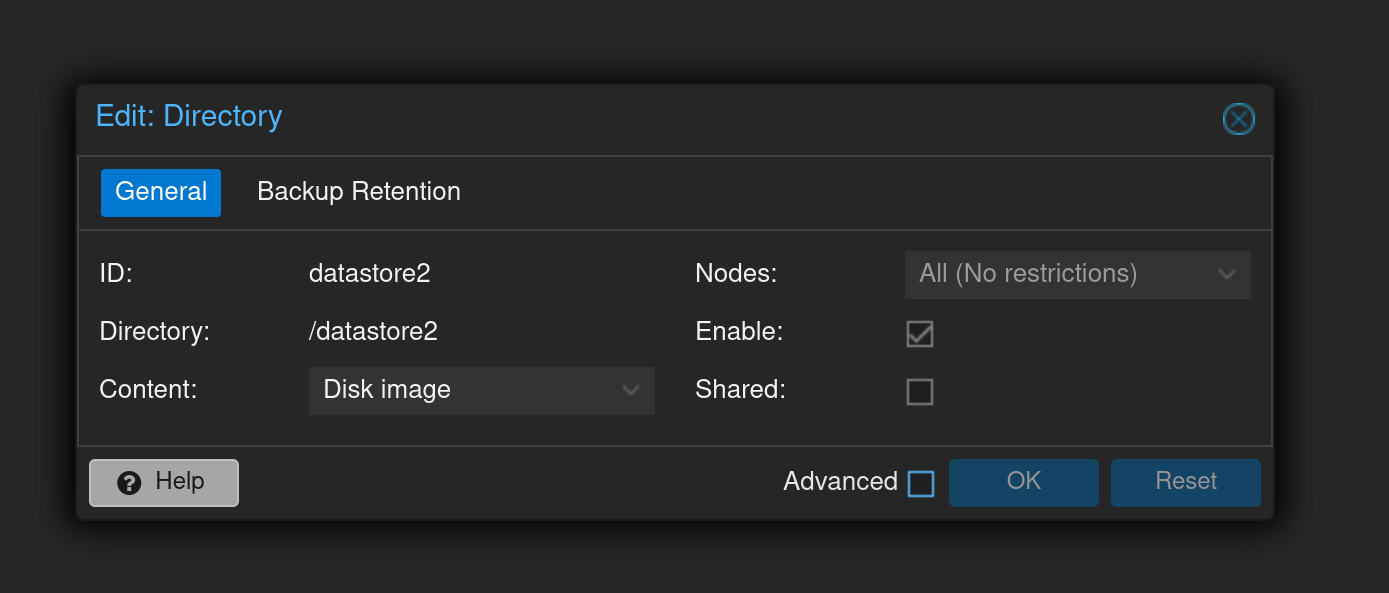
Go to "Datacenter", then Storage, Add, and finally: Directory
All you need to do is specify an ID of your choice (datastore2 in my case) and enter the corresponding directory in the directory field.
"Content" tells Proxmox what types of content this storage can hold (in my case, only "disk image").
Here is what it looks like once created on my system:
Enjoy!
You can follow me on: Telegram | YouTube | Twitter | Facebook | LinkedIn | Twitch
Leave a comment
Add a comment